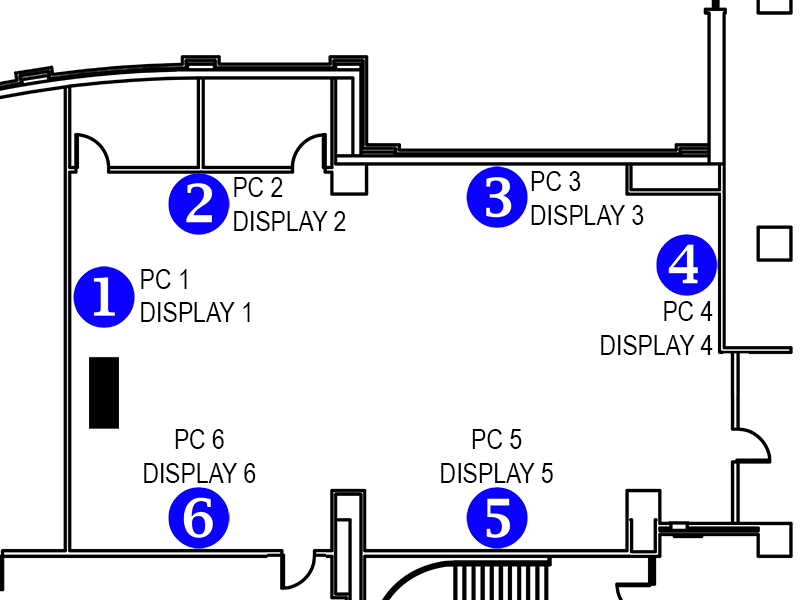
Video Routing Overview
The technology in this room is comprised of inputs and outputs. At the most basic level:
Inputs = Six PCs already in the room.
Outputs = Six large-screen displays on each wall plus the screen on the lectern.
On the lectern, there is a small touchscreen display to the right of the monitor. This controls various aspects of the system including power, video routing, audio level, and adjusting the ceiling-mounted camera. The left side of the touchscreen lists the available inputs, and the right side lists the available outputs.
Presentation Mode
By default, when the system is first powered on, it initializes itself in "Presentation Mode." The display on the touchscreen looks like this:
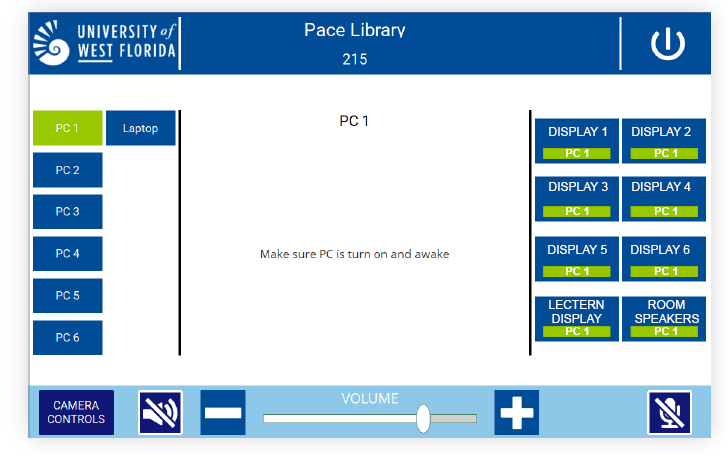
In this configuration, the instructors' screen (at the podium) is displayed on ALL screens throughout the room. This can be verified on the touchscreen's output (right) side. Each output (e.g. DISPLAY 1, DISPLAY 2, etc.) is set to "PC 1".
Freestyle Mode
"Freestyle Mode" allows each display to be used independently (e.g., allowing groups of students to work on projects separately). This is accomplished using the touchscreen to pair each computer with a dedicated display. For example, to allow up to 6 groups to work independently, you would configure the system by selecting the following options on the touchscreen:
- Touch "PC 1" on the input (left) side, then touch "DISPLAY 1" on the output (right) side.
- Touch "PC 2" on the input (left) side, then touch "DISPLAY 2" on the output (right) side.
- Touch "PC 3" on the input (left) side, then touch "DISPLAY 3" on the output (right) side.
- Touch "PC 4" on the input (left) side, then touch "DISPLAY 4" on the output (right) side.
- Touch "PC 5" on the input (left) side, then touch "DISPLAY 5" on the output (right) side.
- Touch "PC 6" on the input (left) side, then touch "DISPLAY 6" on the output (right) side.
Once these selections have been made, the touchscreen display should look like this:
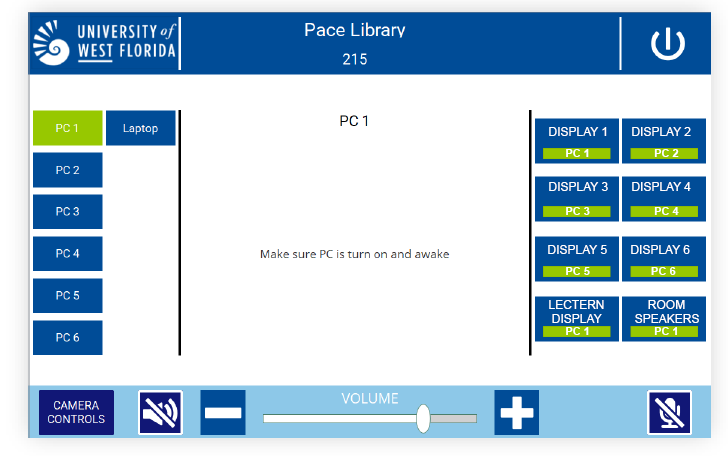
"Presentation Mode" and "Freestyle Mode" are likely the most common video routing scenarios used in this space. That said, any combination of inputs and outputs can be configured. For reference, the displays and computers in the space follow a pattern where the front-of-room display/lectern is #1, and the rest of the computers/displays increase in number as you go clockwise around the room (#2 through #6).