


Procurement
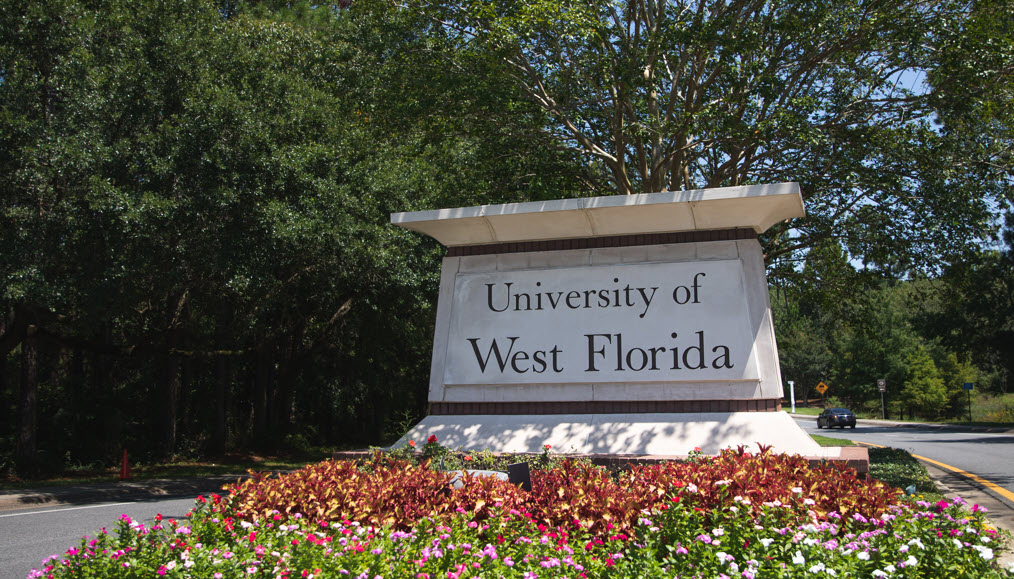
Welcome to Procurement and Contracts
Our website serves as a convenient source of information for the UWF community, existing and potential strategic partners, and contractors. Procurement and Contracts is located in Building 90, Room 121.
Mission
We are committed to delivering best value solutions to the entire UWF community through strategic initiatives and efficient procurement of goods and services, while adhering to all applicable policies, regulations and laws.
Vision
Our goal is to be recognized by our customers, professional organizations, and peers as a best-in-class team dedicated to enhancing flexibility, improving communication, prioritizing customer satisfaction, fostering education and empowerment, streamlining processes, driving innovation, and promoting best value practices.