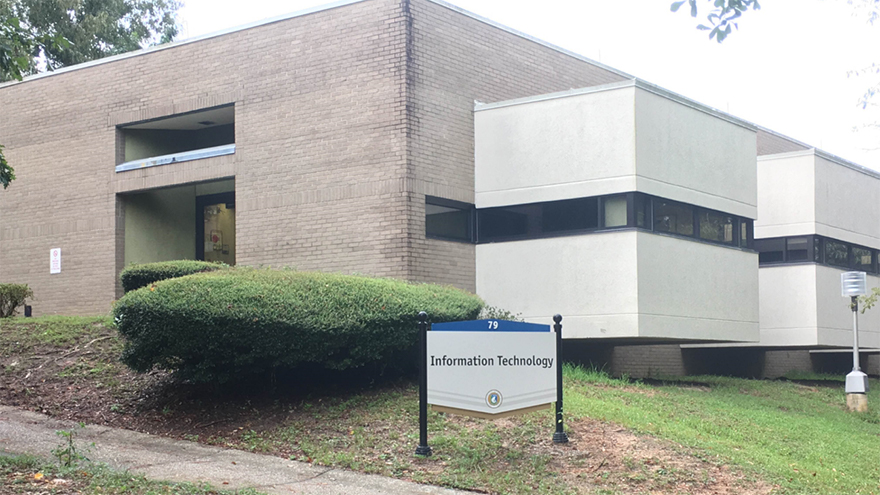
When you leave your desk unattended, always lock your computer with your password so that a passer-by cannot access your files. To do this, first configure your computer settings so that the computer locks automatically after a period of inactivity (we recommend 15 minutes). Second, you can manually lock your computer whenever you step away. Here's how...
Windows XP
To lock the computer manually, press CTRL + ALT + DEL, then click Lock Computer. Your password will then be required to resume work on the computer.
To lock the computer automatically after 15 minutes of inactivity, right click on the desktop and select Properties. Click the Screen Saver tab, then the Power... button. On the Power Schemes tab, set "Turn off monitor" to After 15 mins. Click the Advanced tab and check the box labeled Prompt for password when computer resumes from standby. Click OK twice.
Mac OS X
From the Apple menu, select System Preferences, then Desktop & Screen Saver. Click on the Screen Saver tab then select a screensaver. Here you can also specify the number of minutes of inactivity before the screen saver starts. Now, click Select All, then Security. Check the box for Require password to wake this computer from sleep or screen saver. When you leave your computer, you can select Sleep from the Apple menu. Once the computer is in “sleep” mode, your password must be entered to “wake up” the computer.
Never send highly-sensitive information, such as social security numbers, via standard, unencrypted email. When using standard email, there is a possibility that the message could be read by someone as it is transmitted from your computer to the recipient. When working with social security numbers, remember these guidelines:
IT materials, including toner cartridges, computer equipment, and batteries, cannot be disposed of in your office trash. Used toner cartridges should be packaged in the replacement's box and sent to the attention of Peter Robinson in Building 95. IT equipment (monitors, calculators, USB drives, etc.) should be processed through the university property surplus system to ensure that it is disposed of in an environmentally-friendly manner. In addition, all departments are asked to designate a “dead battery” collection box that is periodically sent to Peter Robinson in Building 95 for proper disposal.
Mac OS X Leopard is available to faculty and staff for installation on university-owned computers. The new OS requires an Intel, PowerPC G5, or PowerPC G4 (867 MHz or faster) processor and 512 MB of memory. Among Leopard’s over 300 new features are improved backup and file sharing functionality, enhancements to the Safari browser, and a “Spaces” utility to group application windows and reduce desktop clutter. If you are interested in having the new OS installed on your Mac, contact your Local Support Provider or the ITS Help Desk.
Beginning Fall Term 2008, students receive a one-time page credit to their ArgoPrint account. Formerly, the university gave variable page credits each semester, the most recent being 500 pages per semester. Students will no longer receive page credits each semester. Should students require more pages, purchases can be made online or at the Cashier’s Office. For more information, see http://portal.knowledgebase.net/article.asp?article=247430&p=6390.
Mon - Thur |
Friday |
Saturday |
Sunday |
|
| ITS Help Desk | 8 am - 10 pm |
8 am - 5 pm |
Closed |
Closed |
| SAIL Lab (Bldg 79) | 7 am - 11 pm |
7 am - 5 pm |
Closed |
1 pm - 8 pm |
| CyberLounge (Commons) | 8 am - 10 pm |
8 am - 6 pm |
10 am - 8 pm |
11 am - 8 pm |
| John C. Pace Library | 7:30 am - 10 pm |
7:30 am - 5 pm |
10 am - 6 pm |
1 pm - 9 pm |
| eDesktop Virtual Lab | Open 24 hours a day, 7 days a week |
|||
